Study tools · Exam preparation
How to Use Google Tools (Docs, Keep, Calendar) for Smart Exam Preparation
Turn scattered chapter notes and forgotten revision plans into a simple system. Learn how to use Google Docs for understanding, Google Keep for quick recall, and Google Calendar for realistic exam planning—with examples for Indian students.
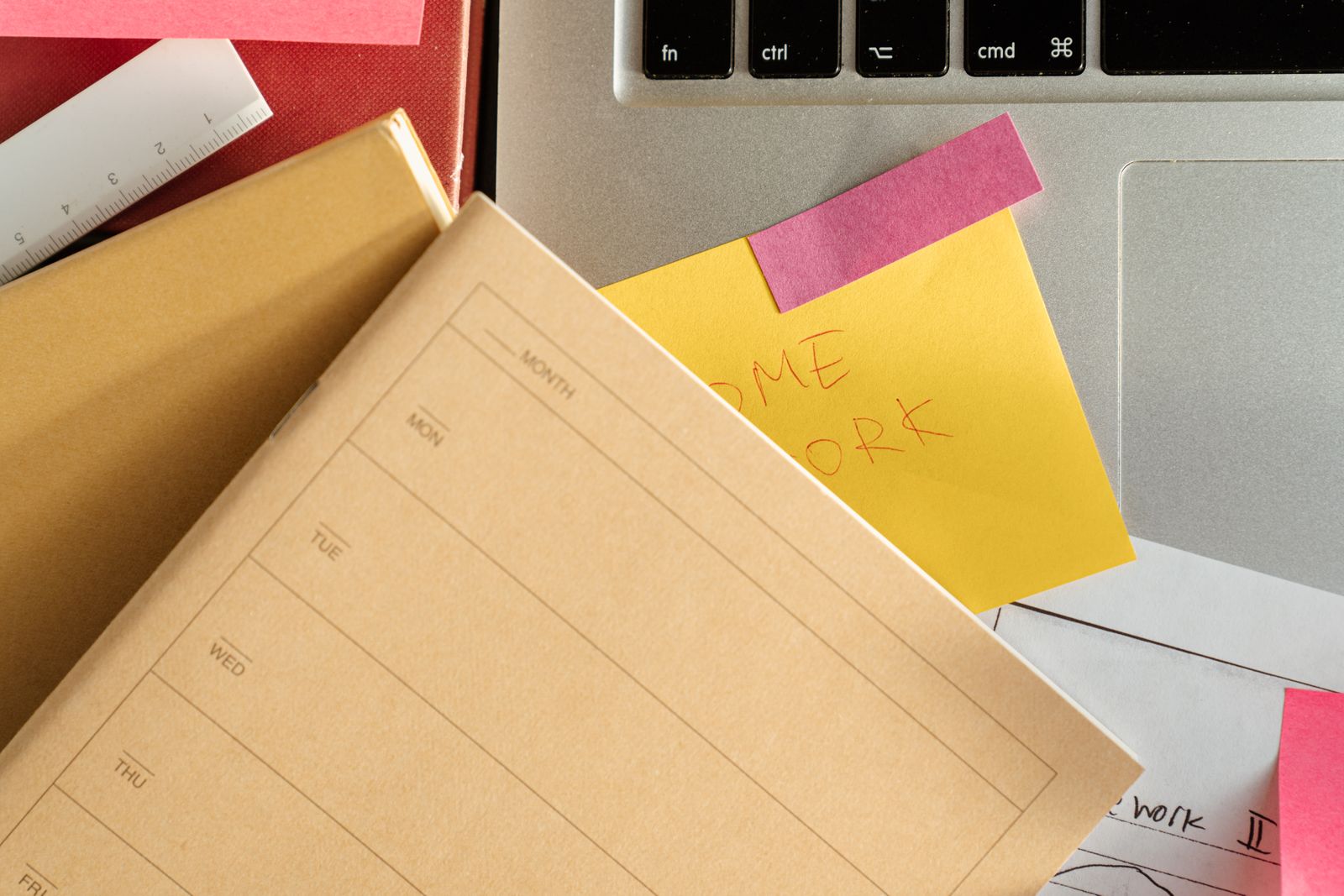
Use your notebook, laptop and scheduled revision together instead of juggling disconnected reminders.
How can Google Docs, Keep and Calendar improve exam preparation
Quick answer: Use Google Docs for structured chapter notes and a mistakes log, Google Keep for short formula cards, checklists and diagram reminders, and Google Calendar for study blocks, tests and recurring revision. Together, they form a simple capture → study → recall → schedule routine.
For Class 11 and 12 students preparing for school exams, CBSE boards or entrance tests, the difficulty is often not finding more material: it is knowing what to revise next. These three Google tools can give every note and study session a clear purpose.
Start simple: One Google account, one study-notes system, one short-note system and one realistic calendar are enough. These tools support good study habits; they do not automatically improve memory or grades without regular practice.
| Google tool | Primary job | Useful student example |
|---|---|---|
| Google Docs | Detailed, editable subject notes | Chapter summary, definitions, formula explanation, mistakes log |
| Google Keep | Short reminders and quick-access revision notes | Three formulas, one diagram, a question to test tomorrow |
| Google Calendar | Study timing, exam dates and revision schedule | Physics numericals at 5:30 pm, Chemistry recap on Friday |
| Google Tasks (connected) | Dated Keep reminders and to-do tracking | A reminder set in Keep appears as a task in Tasks/Calendar |
Google Docs vs Keep vs Calendar: which tool should students use?
Choose based on the information you are managing: long explanations belong in Docs, tiny recall prompts in Keep and time commitments in Calendar.
| Study requirement | Best tool | Why it fits |
|---|---|---|
| Write a complete chapter summary | Docs | Supports headings, tables, links, comments and editing |
| Collect short formulas and definitions | Keep | Makes short notes searchable, labelled and easy to reopen |
| Store a photograph of a Biology diagram | Keep | Allows image notes to be saved and organised |
| Schedule a mock test | Calendar | Reserves time and supports notifications |
| Record mistakes after a test | Docs | Supports explanations and corrections over time |
| Remember to revise a Keep note | Keep → Tasks/Calendar | A timed Keep reminder is handled through Google Tasks |
You do not have to use all three for every assignment. A ten-minute textbook recap might need Keep only; a larger project may need Docs and Calendar.
Set up your Google exam-preparation system in 15 minutes
Start with a small structure and expand it only when your schoolwork actually needs more organisation.
- 1Create your note structure
In Google Drive, make an Exam Preparation folder and subject folders, or create an index Doc that links to each subject. Keep names consistent.
- 2Make one useful chapter template
In Docs, add Chapter, Key concepts, Formulas/definitions, Solved example, Doubts and Revision questions.
- 3Create subject labels in Keep
Add Physics, Chemistry, Maths, Biology or your own subjects; pin today’s most important notes.
- 4Enter fixed dates in Calendar
Add confirmed exam dates, school deadlines and a few short study blocks. Leave time for travel, food, breaks and sleep.
- 5Schedule the first recall session
Put a review slot on your Calendar, close the notes and try to answer from memory.
Use your school’s syllabus to decide the chapter list. For CBSE, check the current syllabus and textbooks using CBSE Academic and NCERT textbooks.
Use Google Docs to make chapter notes that are easy to revise
A good Google Doc is not a transcript of the entire textbook. It is an organised record of the concepts, examples and questions you will return to before an exam.
Create a master document for a small subject or unit, or use separate chapter documents linked from a subject index when material becomes too long. Either way, use the same layout each time:
| Note section | What to include |
|---|---|
| Chapter overview | Three to five ideas the chapter explains |
| Definitions & formulae | Precise textbook wording, symbols, units and conditions |
| Worked example | One problem with the logic behind each step |
| Common mistakes | Errors made in homework, quizzes or mock tests |
| Recall questions | Questions to answer with the document closed |
| References | Teacher notes, textbook pages and carefully checked learning links |
Google Docs saves changes online automatically when connected. Check your account and document-sharing permissions before uploading school material.

Use headings, colours and the document outline for faster navigation
Google Docs automatically builds a document outline from headings. This lets you jump between chapters or concepts without endlessly scrolling.
- 1Apply heading styles
Use the Styles dropdown to mark major chapters as Heading 1 and smaller topics as Heading 2 or Heading 3.
- 2Open the outline
Choose View → Show outline, or open the outline/navigation panel available in your version of Docs.
- 3Keep colours consistent
For example, orange for definitions, blue for examples and green for formulas. Colours are navigation cues, not a memorisation technique by themselves.
- 4Create questions under each topic
After reading, hide the explanation and try to give a short answer. Check accuracy against your notes.
Google’s official guide explains how to use the Docs document outline on a computer. The exact mobile interface differs.
Build a Google Docs mistakes log after every test
A mistakes log prevents students from repeatedly losing marks to the same misunderstanding. Record the error, its cause and how you will prevent it next time.
| Question / topic | What went wrong | Correction and next action |
|---|---|---|
| Physics: acceleration | Used km/h instead of m/s in substitution | Convert units first; practise two mixed-unit problems |
| Chemistry: balancing | Missed an atom on the product side | Count every element on both sides before finalising |
| Biology: short answer | Explained the process but omitted a key term | Underline required NCERT terminology and rewrite the answer |
| Mathematics: signs | Lost a negative sign during rearrangement | Write the full intermediate step and recheck |
Use Google Docs comments to flag “revise again,” “ask teacher” and “needs a diagram.” Link a relevant official chapter or teacher-shared resource rather than collecting random videos.
Better than copying the solution: After correcting a test error, try a new question using the same concept without opening your Docs page.
Make Google Docs work harder: voice typing, tables and collaboration
Docs can speed up note capture and peer feedback, but students should still verify what was dictated or edited.
Google confirms that voice typing works in supported browsers. A microphone and appropriate browser permissions are required. Proofread speech recognition carefully, particularly for scientific terms and mathematical notation.
Use Google Keep for short notes that trigger active recall
Keep works best for material that fits into a short prompt: a formula, a definition, an important date, a diagram to identify or a quick question.
Instead of writing the full explanation on the first line, make the title a question such as “What does Newton’s second law state?” and place the answer below it. Try recalling the answer before opening the note.
| Keep note title | Short content |
|---|---|
| Physics — Ohm’s law? | Recall V = IR, the meaning of each symbol and when it applies |
| Chemistry — Oxidation? | State the definition, then give one reaction example |
| Biology — Mitosis stages? | List the stages, then check the associated drawing |
| History — event sequence? | Recall three events in chronological order before viewing the list |
Colour-coded notes are convenient for organisation, but repeated retrieval matters more than merely rereading brightly coloured text.
Organise Keep notes with subject labels, pins and image notes
Labels and pinned notes help you find revision material quickly. Photos make Keep useful for diagram-heavy subjects.
Google’s Keep organisation guide covers labels, colours and pinning. Its image note help page explains how to attach photographs on a computer.
Important 2026 update: Keep reminders now work through Google Tasks
Students can still set timed reminders from Google Keep notes, but the reminder is saved as a Google Task. It can be viewed and managed in Keep, Tasks and Google Calendar.
- 1Open your Keep note
Create a short note, such as “Revise electrostatics formulas.”
- 2Choose the reminder control
Pick a date and time, such as tomorrow at 6 pm; add recurrence when appropriate.
- 3Check Tasks or Calendar
Find the corresponding task. It may be identified as originating from Keep.
- 4Enable mobile notifications
Use the Google Tasks app or Google Calendar app and allow their notifications; Keep itself no longer sends the reminder notification.
- 5Mark the reminder complete
After revising, complete the task. Your Keep note remains available as a study resource.
Do not confuse the apps: Your entire Keep note does not turn into a Calendar event. Its scheduled reminder becomes a Google Task. This change rolled out in 2025 and remains relevant in 2026.
Official instructions: set a Keep reminder and understand Keep reminders in Tasks.
Build a realistic weekly study timetable in Google Calendar
A helpful exam timetable gives a specific topic and a realistic length to each study block—not just an event named “Study.”
| Time (example only) | Study block | Outcome |
|---|---|---|
| 5:30–6:15 pm | Physics: numerical practice | Attempt four questions and mark errors |
| 6:15–6:30 pm | Break / food | Step away from the screen |
| 6:30–7:10 pm | Chemistry: reactions and concepts | Explain three reactions without notes |
| 7:10–7:25 pm | Quick recap in Keep | Attempt five recall prompts |
| Sunday afternoon | Weekly review or mock test | Review questions missed during the week |
These times are examples, not a prescribed schedule. Adjust around school, travel, rest and family commitments. Most students benefit from some spare time in the plan to handle interruptions.

Use Calendar for exam deadlines, mock tests and alerts
Enter fixed exam dates first, then set one or two reminders early enough to prepare rather than relying on a last-minute alert.
- 1Add confirmed assessment dates
Use the school notice or official exam timetable, not a guessed date.
- 2Set preparation milestones
For a test in two weeks, schedule the first chapter review and a timed practice session several days before it.
- 3Choose notifications
Google Calendar supports event alerts on phones, in browser settings and by email, depending on your configuration.
- 4Use colours meaningfully
For example, red for confirmed assessments, blue for Maths practice and green for revision. Colour meanings are your own conventions.
- 5Keep a buffer
Avoid booking every available minute. Move a study block when a genuine school or family commitment interrupts it.
Google’s current documentation explains how to configure Calendar notifications and set event colours.
Schedule recurring revision sessions and spaced practice
Recurring study blocks reduce the need to recreate the same timetable each week. Spaced review is useful because students revisit material after an interval rather than only the night before an exam.
| When to review | Example task in Calendar |
|---|---|
| After first learning | Short self-test with the textbook closed |
| The next day | Re-answer three weak questions in Keep or on paper |
| Later that week | A few mixed problems or short-answer prompts |
| One or two weeks later | Timed mini-test and corrections from Docs mistakes log |
| Before assessment | Target only the unresolved mistakes and the highest-priority material |
Intervals are a starting point, not a universal memory formula. Harder topics need more frequent review, and students should change the schedule based on test results.
Calendar events can repeat automatically. Repeating Tasks are another option if you prefer a to-do list that you can mark complete.
Combine Docs, Keep and Calendar into one study loop
The three tools are most useful as a coordinated routine: learn deeply in Docs, test yourself briefly with Keep, and make sure revision actually happens using Calendar.
Capture the chapter clearly
Summarise the main idea, write one worked example and record errors after a test.
Create short recall prompts
Copy or summarise only the key formulas, definitions and questions. Keep them short enough to test from memory.
Protect a time for revision
Schedule a review block and any exam deadlines; use Tasks for dated reminders connected to Keep.
Record what you missed
Correct the mistakes log, update the explanation and prepare a fresh question for next time.
Google also supports moving content from Keep into Docs: copy a Keep note to Google Docs or work with Keep in the Docs side panel using the official integration guide. This requires user action; notes are not automatically converted into Docs summaries.
Sample seven-day Google-powered exam revision plan
Use a one-week example to see how these tools share the workload without adding extra administration.
| Day | Docs action | Keep / Calendar action |
|---|---|---|
| Monday | Summarise one new chapter | Keep: create five recall questions; Calendar: block Thursday review |
| Tuesday | Work two examples and mark doubts | Keep: test yesterday’s questions without reading answers first |
| Wednesday | Add teacher corrections to notes | Calendar: reserve a short practice session |
| Thursday | Update mistakes log after practice | Keep: retest weak cards; Calendar: log next review |
| Friday | Build a short topic-comparison table | Keep: recall two definitions and formulas |
| Saturday | Solve a small mixed worksheet | Calendar: record mock-test time and review |
| Sunday | Review the week’s weak points | Archive finished Keep notes; plan the next week |
Keep it sustainable: A missed session is not proof the timetable has failed. Reschedule it, shorten the next block if necessary and continue with the most important concepts first.
Subject-wise examples for Class 11 and 12 students
The three-tool system can work across streams, provided the actual content comes from your teacher’s notes and the current syllabus.
| Subject | Google Docs | Google Keep | Google Calendar |
|---|---|---|---|
| Mathematics | Formula conditions and worked examples | A formula recall card plus common sign errors | Timed problems twice a week |
| Physics | Derivations, units and numerical errors | Key formulas and a diagram prompt | Numericals and concept recap blocks |
| Chemistry | Reaction groups and key observations | Conditions or exceptions on short cards | Alternating theory and practice |
| Biology | Process summaries and labelled figures | Diagram identification and terms | Short recall sessions on multiple days |
| Economics | Concept comparisons and graphs | Definitions and one real-life example | Case-study answers and mock questions |
| English | Essay structure and writing feedback | Vocabulary and common grammar errors | Writing practice with a deadline |
Students in Kerala Higher Secondary, CBSE and other Indian boards should adapt the chapter list and answer format to their own official curriculum.
A simple daily routine using Google tools
The goal is not to open more apps. The goal is to spend more of your study time understanding, recalling and practising.
A short and consistent routine is usually easier to maintain than an elaborate timetable with constant app switching. Keep social media and unrelated notifications away from focused study time.
Common mistakes students make with digital study tools
The main risk is spending more time arranging notes than actually studying them.
The simplest fix is to review your tool setup every Sunday: archive unused notes, delete duplicate calendar blocks, keep unresolved doubts visible, and prioritise one or two weak chapters.
Are Google Docs, Keep and Calendar free and safe for school use?
These tools have widely available core features for Google account holders, but storage quotas, network access, account permissions and certain school-controlled settings may apply.
Use a personal or school-authorised account as appropriate. Avoid saving passwords, exam login credentials, confidential student data and private teacher assessments in shared notes. Review document sharing carefully and allow editing only to people who need it.
For younger students, school-managed Google Workspace accounts may restrict features; the interface can also vary by device. Set up offline Docs access before losing internet connectivity if you intend to study offline, and remember that some features require a connection.
Core product links: Google Docs, Google Keep, Google Calendar, Google Tasks.
Frequently asked questions about Google tools for exam preparation
Practical answers about note-making, reminder changes, study calendars, free access and revision habits.
How can I use Google Docs, Keep and Calendar together for exams?
Use Docs for structured explanations and a mistakes log, Keep for short recall prompts and Calendar for scheduled practice. Set timed reminders in Keep when useful; they are managed as Google Tasks.
Is Google Docs free for students?
Core Google Docs features are available with a Google account. Storage limits, connectivity and school-managed account restrictions can apply.
What is the difference between Google Keep and Google Docs?
Google Keep is suitable for quick notes, checklists and reminders. Google Docs is better for longer, formatted chapter notes, tables, comments and collaborative writing.
Can Google Keep reminders appear in Google Calendar in 2026?
Yes. Since the 2025 change, timed reminders created in Keep are saved to Google Tasks and can appear in Calendar. For mobile alerts, enable notifications in Tasks or Calendar.
Does Google Keep send its own reminder notifications?
No. Current Google guidance says mobile reminder notifications now come from Google Tasks or Google Calendar, depending on installed apps and notification settings.
How do I turn Google Docs notes into revision cards?
Select key questions or definitions from a Docs chapter and create short notes in Keep. Alternatively, use the Docs side panel to save content to Keep. Test yourself before revealing the answer.
Can I make a recurring study timetable in Google Calendar?
Yes. Create an event for a specific study block and choose a repeating schedule such as weekly. Reserve breaks and update the plan if school timings change.
Can Google Docs create chapter outlines automatically?
Google Docs builds a document outline based on text formatted as headings. Apply Heading 1, Heading 2 and Heading 3, then use the outline navigation feature.
Can I attach a Biology diagram to Google Keep?
Yes. Google Keep supports image notes, including photographs of diagrams, graphs or whiteboard explanations. Add short questions so the image supports revision rather than passive viewing.
Are Google Docs, Keep and Calendar better than paid study apps?
They can be sufficient for note organisation, quick prompts and study scheduling, especially for students who already use Google products. They do not replace subject-specific practice, teacher feedback or every specialist paid feature.
What should I do if I miss a scheduled study session?
Move the Calendar block to a realistic time, identify the highest-priority unfinished task and continue. Do not fill the next day with an unmanageable backlog.
Official sources and product-change notes
This article uses Google’s current help documentation and distinguishes official product capabilities from suggested study routines.
- Google Docs: document outlines — heading-based chapter navigation.
- Google Docs: voice typing — supported browsers and requirements.
- Google Keep: organise notes — labels, colours and pins.
- Google Keep: image notes — attaching diagrams and photos.
- Google Tasks: Keep reminder migration — Keep reminders in Calendar and Tasks, and notification changes.
- Google Keep: reminder setup — creating a date/time reminder.
- Google Docs: use Keep notes — side-panel connection.
- Google Calendar: recurring events and event notifications.
- NCERT textbooks and CBSE Academic — Indian textbook and curriculum checks.
Editorial clarification, October 2026: Google Keep reminder notifications come through Tasks or Calendar. Colour coding is an organisational convention, not a proven memory shortcut; meaningful recall, practice questions and timely revision remain essential.
Final takeaway: make study habits easier, not more complicated
You do not need an expensive productivity app to start preparing more systematically for your next exam.
Use Google Docs to understand and organise a lesson, Keep to turn key material into questions and reminders, and Calendar to protect time for self-testing and revision. The most useful system is the one you can maintain during ordinary school days.
Explore the Mass Graduates student blog for more study and career guidance, and confirm curriculum content against your own textbook and school assessment instructions.